Material Palettes
Material Palettes allow you to define sets of interchangeable materials that can be applied to your building.
How to Create
To create a new Material Palette:
- Right-click in the Content Drawer.
- Navigate to the D3kryption Building Generator menu.
- Select Material Palette.
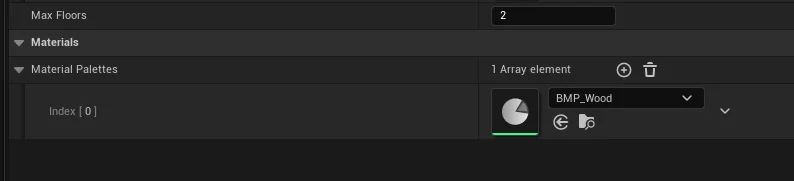
Palette Asset
A Building Material Palette asset contains:
- Palette ID: A name to identify this palette (e.g., "Brick", "Wood", "Concrete").
- Materials: A list of
Material Interfaceassets.
Slot Rules
In each Building Piece Definition, you define Slot Rules to control how materials are applied to specific material slots on the mesh.
| Mode | Description |
|---|---|
| Fixed | Uses a specific material from the Material Options list. Use this for parts of a piece that should never change (e.g., a door handle). |
| Independent Random | Randomly picks a material from the Material Options list for each piece spawned. Great for adding small variations like different colored flower pots. |
| Building Palette | Picks a random material from the building's current palette that matches the specified Palette ID. This ensures all pieces in a building use consistent materials (e.g., all walls are the same brick type). |
| Match Parent | Inherits the material choice from the piece that spawned this one. If a door frame is set to "Oak", the door piece attached to it will also be "Oak" if set to Match Parent. |
How Palettes Work Together
- Create Palettes: Create multiple
Material Paletteassets (e.g., "Stone_Wall", "Wood_Wall", "Roof_Tiles"). - Assign to Definition: Add these palettes to the Material Palettes list in your Building Definition.
- Set Slot Rules: In your Piece Definitions, set a slot rule to Building Palette and enter the
Palette ID(e.g., "Stone_Wall"). - Variety: The generator will pick one palette for the entire building (or per section) to ensure a cohesive look while still allowing for randomization between different building instances.